> ## Documentation Index
> Fetch the complete documentation index at: https://elementary-devin-1782754750-bigquery-permissions-docs.mintlify.site/llms.txt
> Use this file to discover all available pages before exploring further.
# Github
Elementary connects to the code repository where your dbt project code is managed, and opens PRs with configuration changes.
## Recommended: Connect using Elementary Github App
Navigate to the **Account settings > Environments** and choose the environment to which you would like to connect the dbt project code repository.
Simply Click the blue button that says "Connect with Elementary Github App" and follow the instructions.
In the menu that opens up later on, select the repository where your dbt project is stored, and if needed the branch and path to the dbt project.
Requires a user with permissions to install new applications in the repository.
## Alternative: Create a Github [fine-grained token](https://docs.github.com/en/authentication/keeping-your-account-and-data-secure/managing-your-personal-access-tokens#creating-a-fine-grained-personal-access-token)
If connecting the Elementary Github App isn't an option, you can connect to Github using a fine-grained token managed by your team instead.
1. In the upper-right corner of any page, click your profile photo, then click **Settings**.
2. On the bottom of the left sidebar, click **Developer settings**.
3. On the left sidebar, select **Personal access tokens > Fine-grained tokens**.
4. Click **Generate new token**.
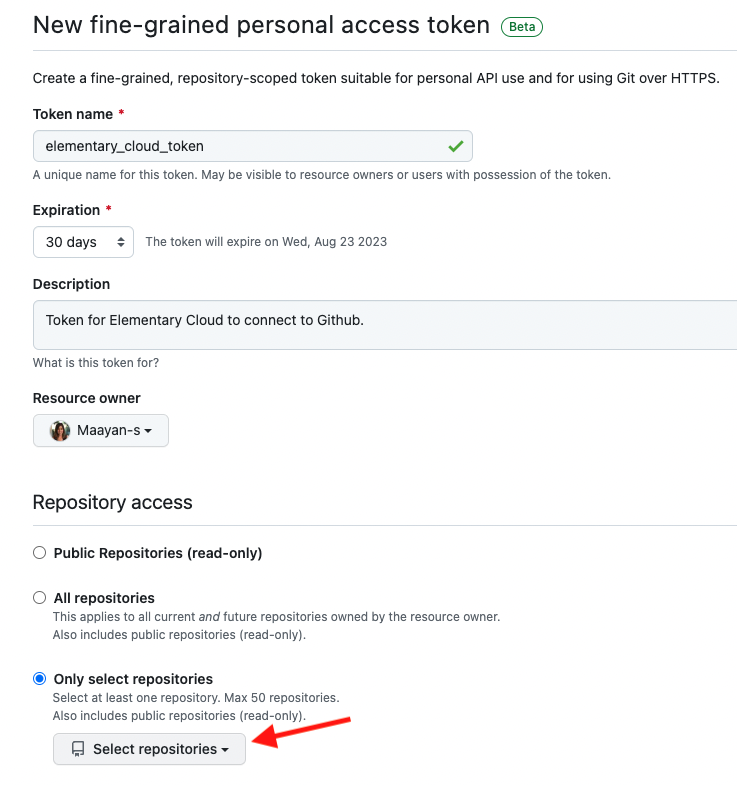
5. Enter a token name, expiration (we recommend 90 days) and description.
6. Under **Resource owner** select the owner of the dbt project repo. If it is missing, you need to contact the resource owner administrator and ask him to approve fine-grained personal access tokens. Read more in For more information, see ["Setting a personal access token policy for your organization"](https://docs.github.com/en/organizations/managing-programmatic-access-to-your-organization/setting-a-personal-access-token-policy-for-your-organization).
7. Under **Repository access** select **Only selected repositories** and select the repo of your dbt project (see picture).
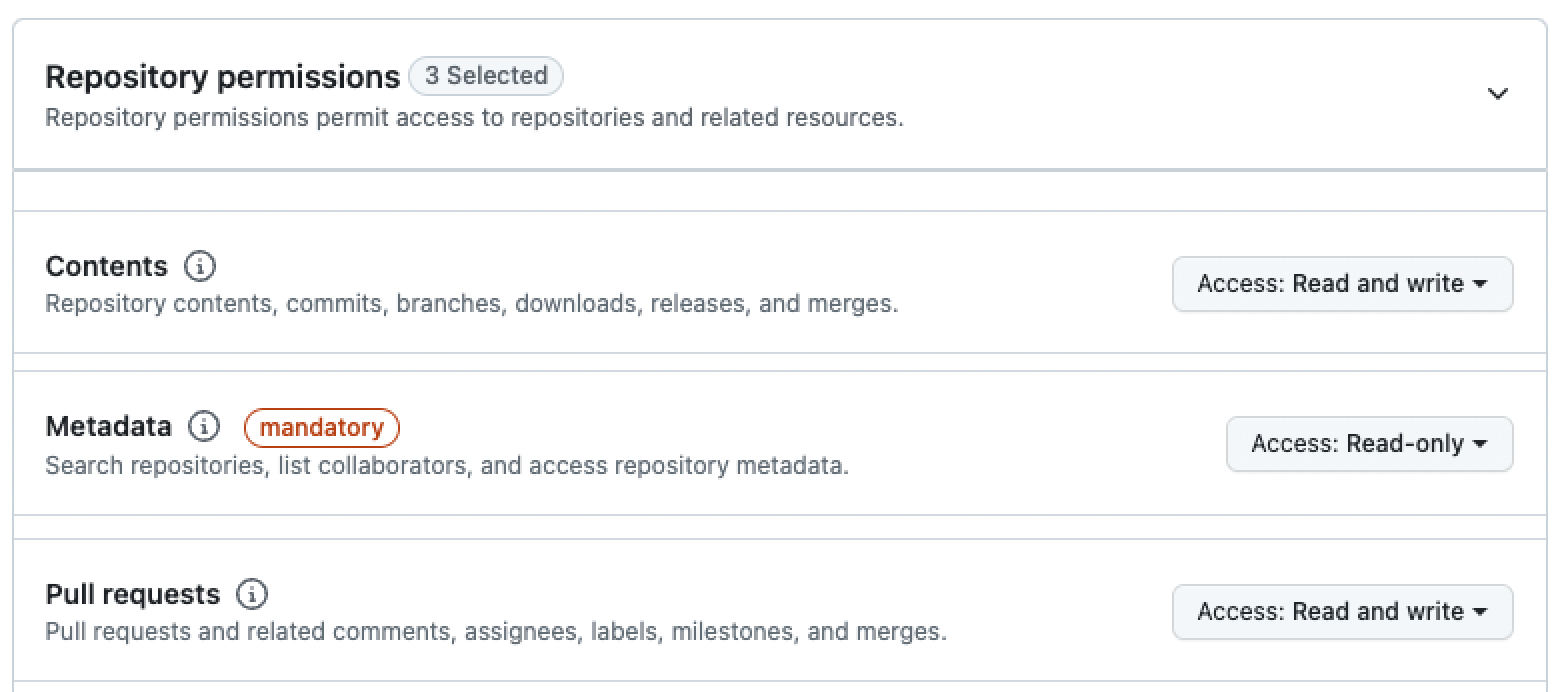
 8. Under **Permissions**, grant the following scopes:
* *Pull Requests* (read and write)
* *Contents* (read and write)
8. Under **Permissions**, grant the following scopes:
* *Pull Requests* (read and write)
* *Contents* (read and write)
 9. Click **Generate token**.
## Repository connection settings
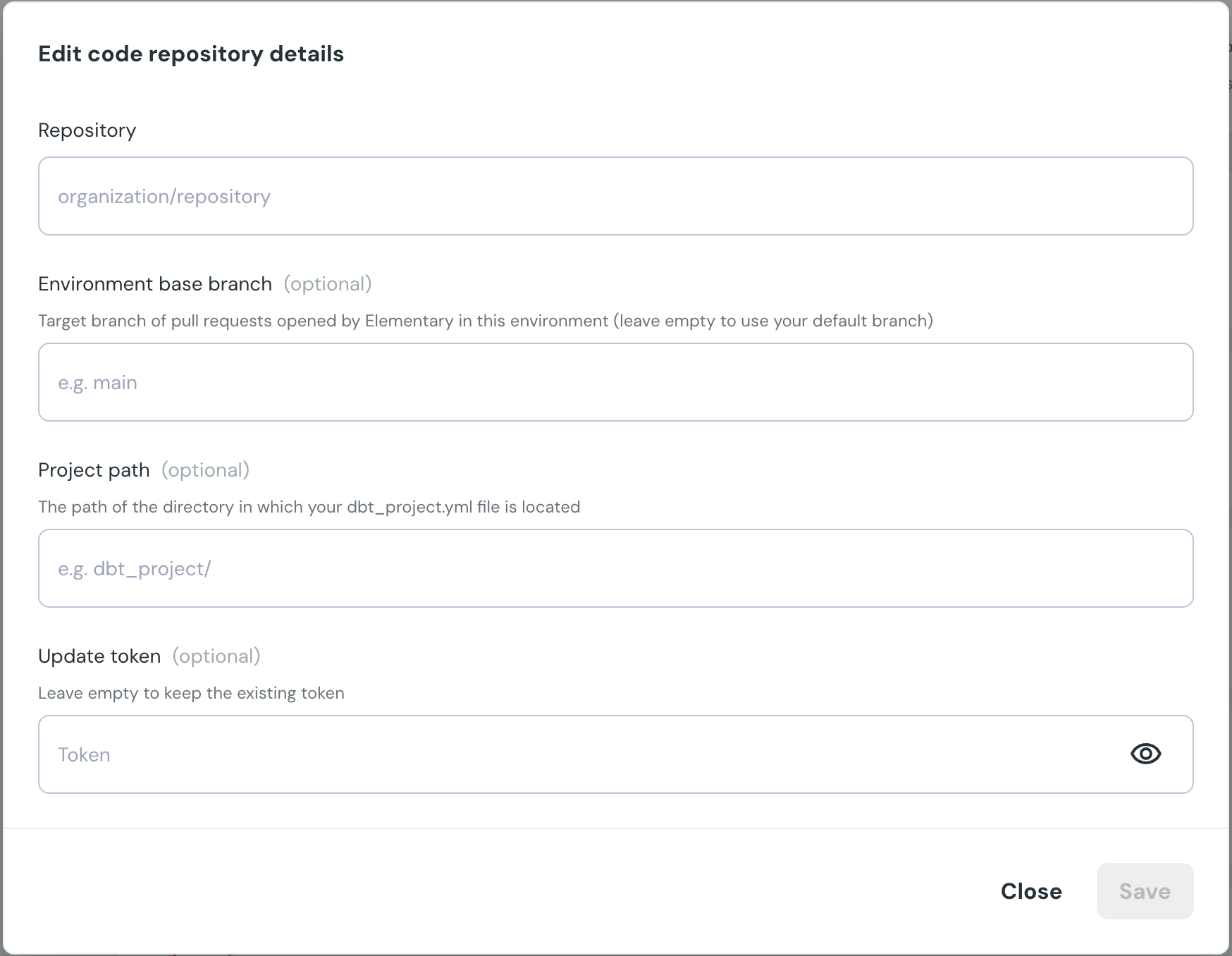
After the authentication, you need to fill in the following details:
* **Repository** - The full name of the code repo.
* *Optional* **Environment base branch** - If you want Elementary to open PRs in a target branch different than default, detail the branch name here.
* *Optional* **Project path** - If your dbt project isn't on the root directory of the repo, detail it's path here.
* *Optional* **Update token** - When the github token expires, regenerate a fine-grained token and paste it here.
9. Click **Generate token**.
## Repository connection settings
After the authentication, you need to fill in the following details:
* **Repository** - The full name of the code repo.
* *Optional* **Environment base branch** - If you want Elementary to open PRs in a target branch different than default, detail the branch name here.
* *Optional* **Project path** - If your dbt project isn't on the root directory of the repo, detail it's path here.
* *Optional* **Update token** - When the github token expires, regenerate a fine-grained token and paste it here.
 ## Project repository settings
Repository settings are configurable per project. You can set **labels**, **commit message prefix**, **branch prefix**, and **ticket ID requirements** for pull requests Elementary opens.
When **required ticket ID** is enabled, every pull request Elementary opens must include a ticket ID. The ticket ID is prepended to the branch name and the pull request title.
## Project repository settings
Repository settings are configurable per project. You can set **labels**, **commit message prefix**, **branch prefix**, and **ticket ID requirements** for pull requests Elementary opens.
When **required ticket ID** is enabled, every pull request Elementary opens must include a ticket ID. The ticket ID is prepended to the branch name and the pull request title.