> ## Documentation Index
> Fetch the complete documentation index at: https://elementary-devin-1782754750-bigquery-permissions-docs.mintlify.site/llms.txt
> Use this file to discover all available pages before exploring further.
# Looker
After you connect Looker, Elementary will automatically and continuously extend the column-level-lineage to the dashboard level.
This will provide you end-to-end data lineage to understand your downstream dependencies, called exposures.
### Create permission set and role
To follow the [least privilege](https://en.wikipedia.org/wiki/Principle_of_least_privilege) security principle, before creating user for Elementary, create a permission set that allows to do only what is needed for Elementary to work.
* **Create a Permission Set**
1. In Looker, go to Admin > Roles. Click **"New Permission Set"**.
2. Name the Permission Set "Elementary permissions" and **check the boxes for the following permissions:**
* `access_data`
* `see_lookml_dashboards`
* `see_looks`
* `see_user_dashboards`
* `see_sql`
* `see_lookml`
* `develop`
* **Create a role**
1. **Click "New Role".**
2. Name the role "Elementary Role" as well.
3. **Select the "**Elementary permissions**" permission set**
4. **Create the role.**
### Create a dedicated Elementary Looker user
In Looker, go to Admin > Users.
1. Click **Add Users**. Provide any email you want.
2. Under Roles, **check "Elementary Role".**
3. Click **Done.**
### Create an API key for the user
1. Find the user you just created and click **Edit.**
2. You can give this user a name like **Elementary**.
3. Under **API Keys**, click **Edit Keys**.
4. Generate a new API key by clicking **New API Key**.
5. Copy down the **client ID** and **client secret**.
### Connecting Looker to Elementary
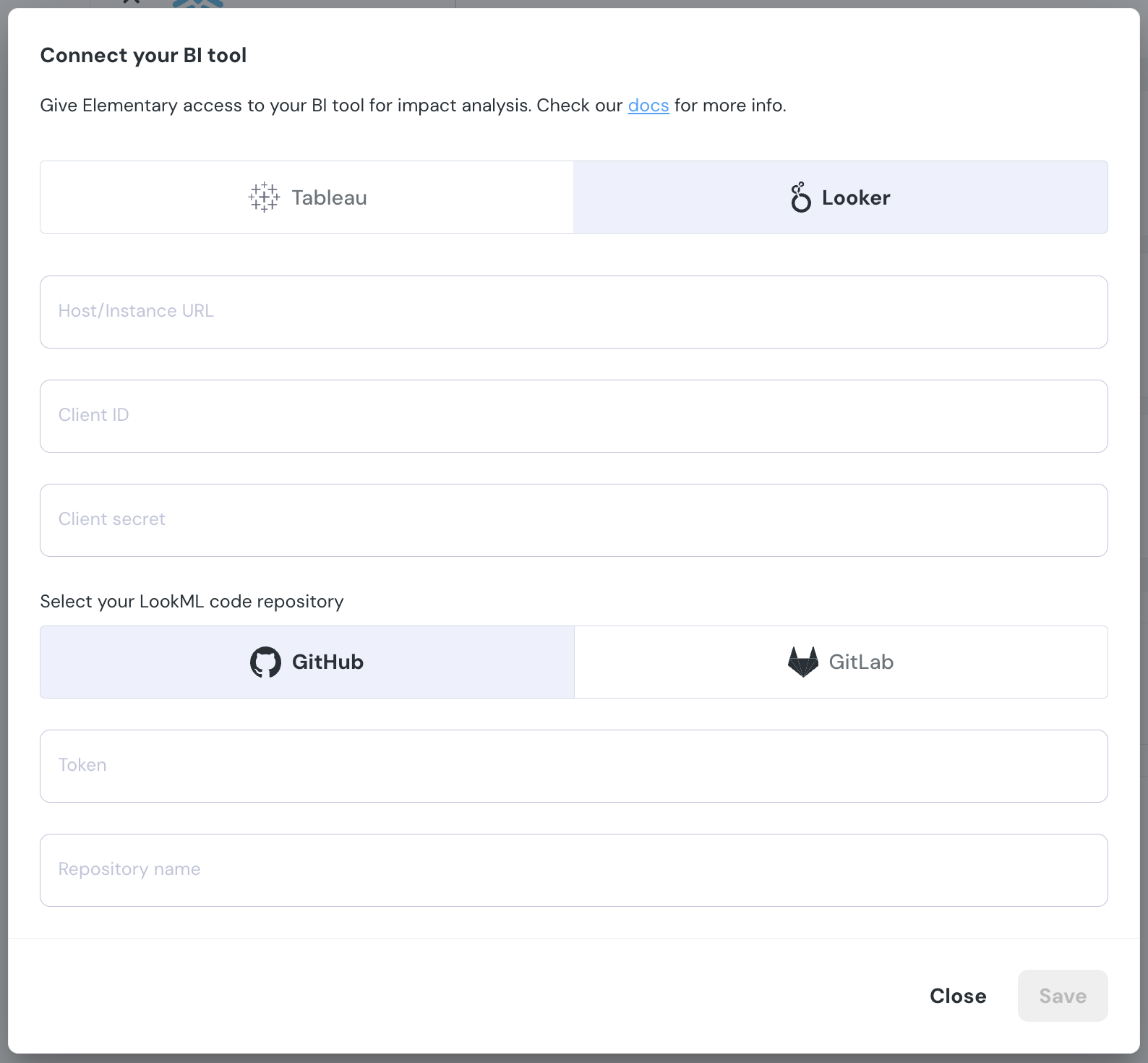
Navigate to the **Account settings > Environments** and choose the environment to which you would like to connect Looker.
Choose the Looker BI connection and provide the following details to validate and complete the integration.
* **Host URL:** Copy and paste the URL you see when you visit the homepage of your Looker instance. e.g. [https://company.cloud.looker.com/](https://prod-useast-a.online.tableau.com/#/site/dev/projects)
* **Client ID**: The client ID you generated on Looker.
* **Client secret:** The client secret you generated on Looker.
* **LookML code repository**:
* Token
* [Github](https://docs.github.com/en/authentication/keeping-your-account-and-data-secure/managing-your-personal-access-tokens#creating-a-personal-access-token-classic)
* [Gitlab](https://docs.gitlab.com/ee/user/project/settings/project_access_tokens.html) - make sure the role is `developer` and the scopes include `read_api, read_repository`
* Repository - The repository name where your LookML code is.