> ## Documentation Index
> Fetch the complete documentation index at: https://elementary-devin-1782754750-bigquery-permissions-docs.mintlify.site/llms.txt
> Use this file to discover all available pages before exploring further.
# Slack
Elementary's Slack integration enables sending Slack alerts when data issues happen.
The alerts include rich context, and you can change the incident status and asssigne from the alert itself.
You can also create [alert rules](/cloud/features/alerts-and-incidents/alert-rules) to distribute alerts to different channels and destinations.
## Enabling Slack alerts
1. Go to the `Environments` page on the sidebar.
2. Select an environment and click connect on the `Connect messaging app` card (first card), and select `Slack`.
4. Authorize the Elementary app for your workspace. **This step may require a workspace admin approval.**
5. Select a default channel for alerts, and set the suppression interval.
The default channel you select will automatically add a default [alert rule](/cloud/features/alerts-and-incidents/alert-rules)
to sends all failures to this channel. Alerts on warnings are not sent by default. To modify and add tules, navigate to `Alert Rules` page.
## Alerts to private channels
If the channel you want to send alerts to is private (🔒), it will not appear in the channels dropdown on the onboarding or the alert rules screen.
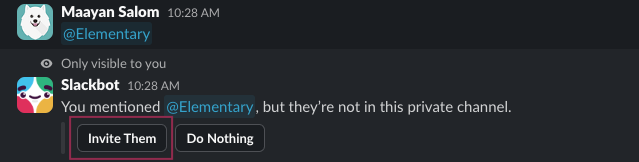
You will need to invite the Elementary bot to the private channel by typing `@Elementary` in the channel and clicking to invite the bot in, and then it will appear in the UI.