> ## Documentation Index
> Fetch the complete documentation index at: https://elementary-devin-1782754750-bigquery-permissions-docs.mintlify.site/llms.txt
> Use this file to discover all available pages before exploring further.
# Jira
Elementary's Jira integration enables creating Jira issues from incidents.
 ## How to connect Jira
1. Go to the `Environments` page on the sidebar.
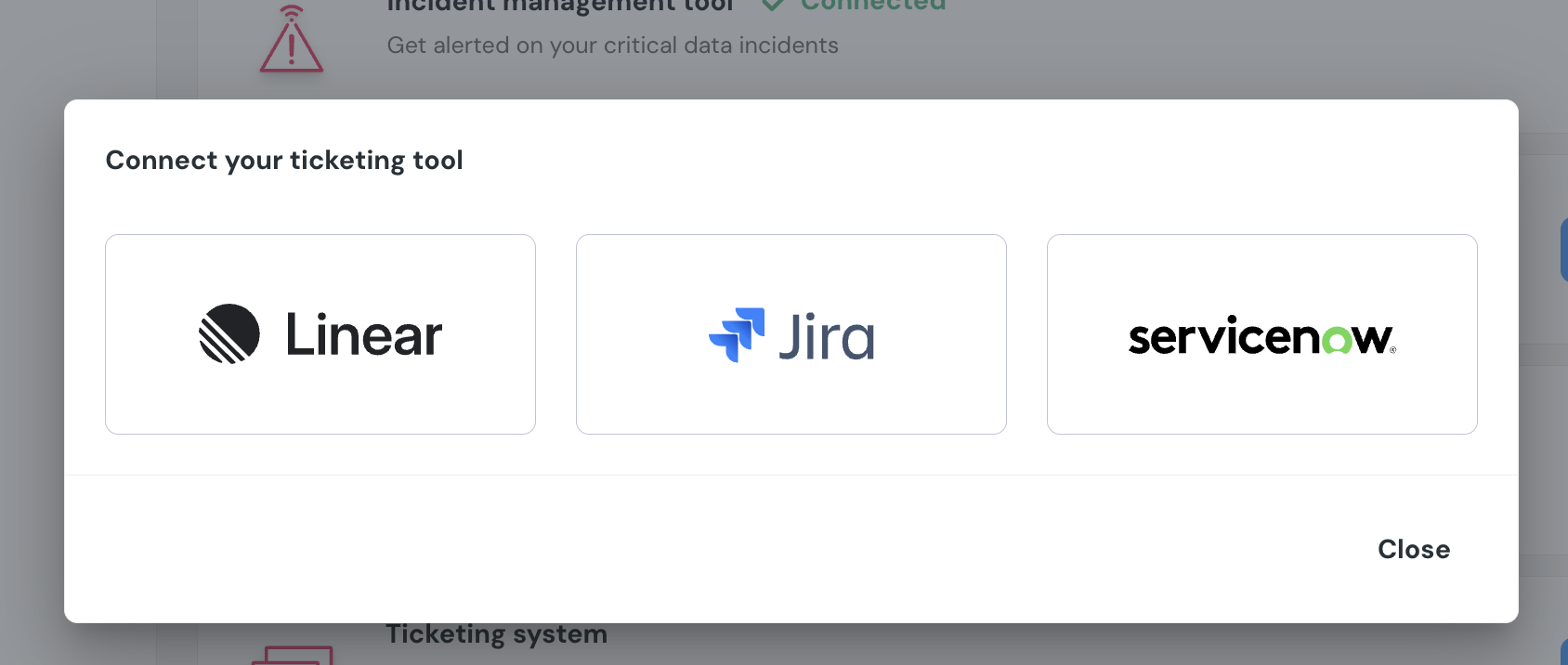
2. Select an environment and click connect on the `Connect ticketing system` card, and select `Jira`.
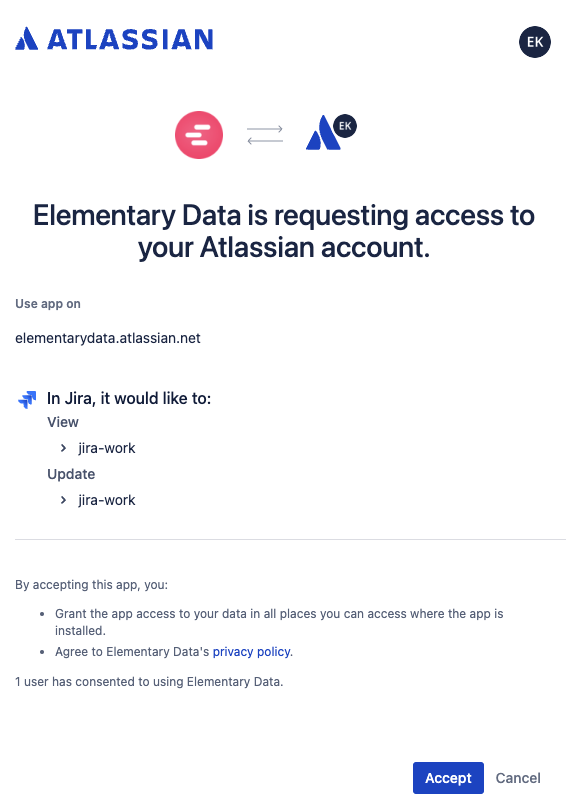
3. Authorize the Elementary app for your workspace. **This step may require a workspace admin approval.**
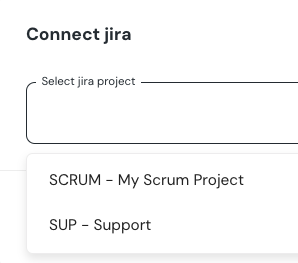
4. Select a default project for tickets
5. Click `Save` to finish the setup
Elementary Jira tickets include the basic ticket fields, test information, asset information and metadata. When connecting Jira, please make sure there's no required field that Elementary doesn't provide.
## How to connect Jira
1. Go to the `Environments` page on the sidebar.
2. Select an environment and click connect on the `Connect ticketing system` card, and select `Jira`.
3. Authorize the Elementary app for your workspace. **This step may require a workspace admin approval.**
4. Select a default project for tickets
5. Click `Save` to finish the setup
Elementary Jira tickets include the basic ticket fields, test information, asset information and metadata. When connecting Jira, please make sure there's no required field that Elementary doesn't provide.

 ## Creating Jira issues from incidents
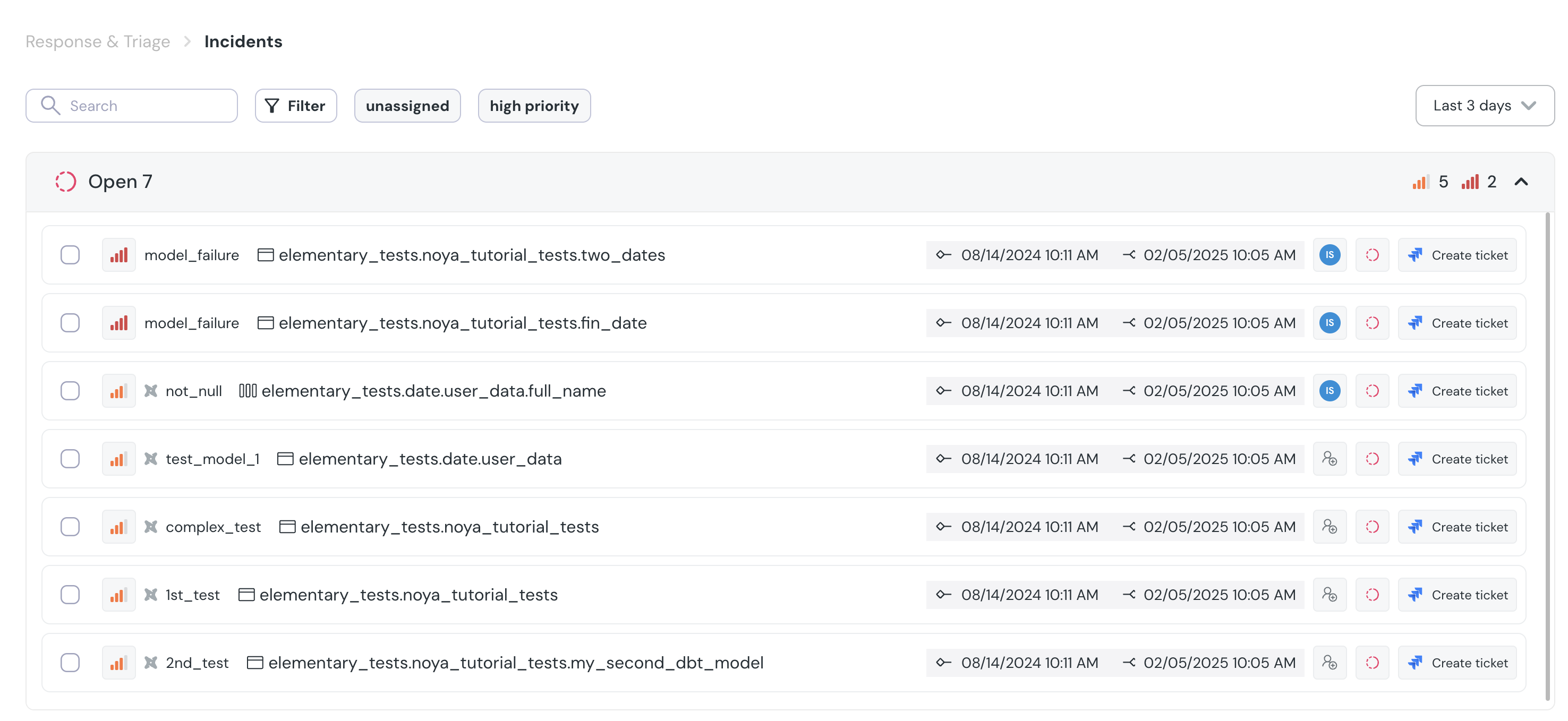
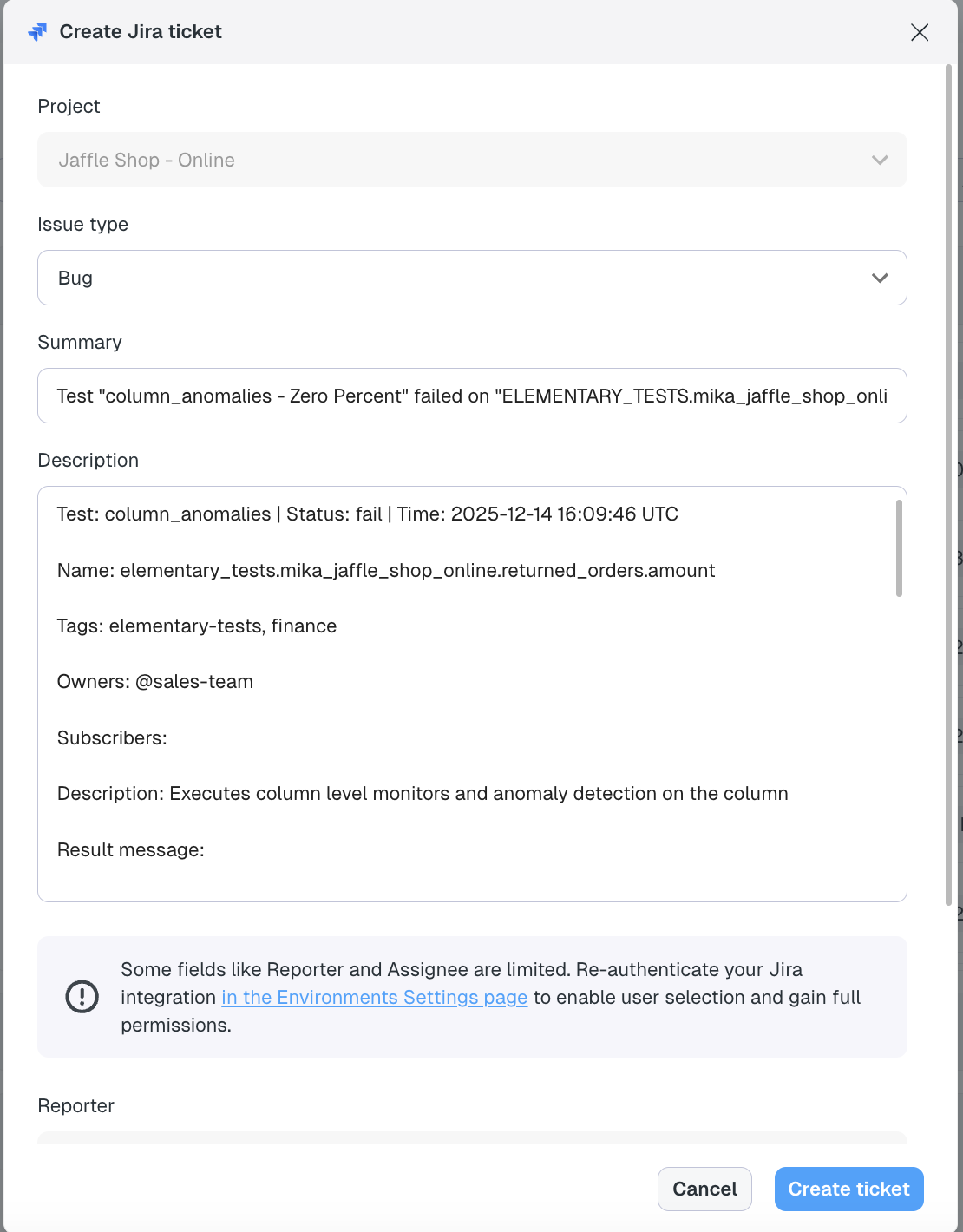
When an incident is created, you can generate a Jira issue directly from the incident page by clicking **Create Jira Ticket**. This opens a pre-filled form where you can review, update, or add additional fields before submitting. Once created, the issue is automatically added to the Jira team you selected when connecting Jira.
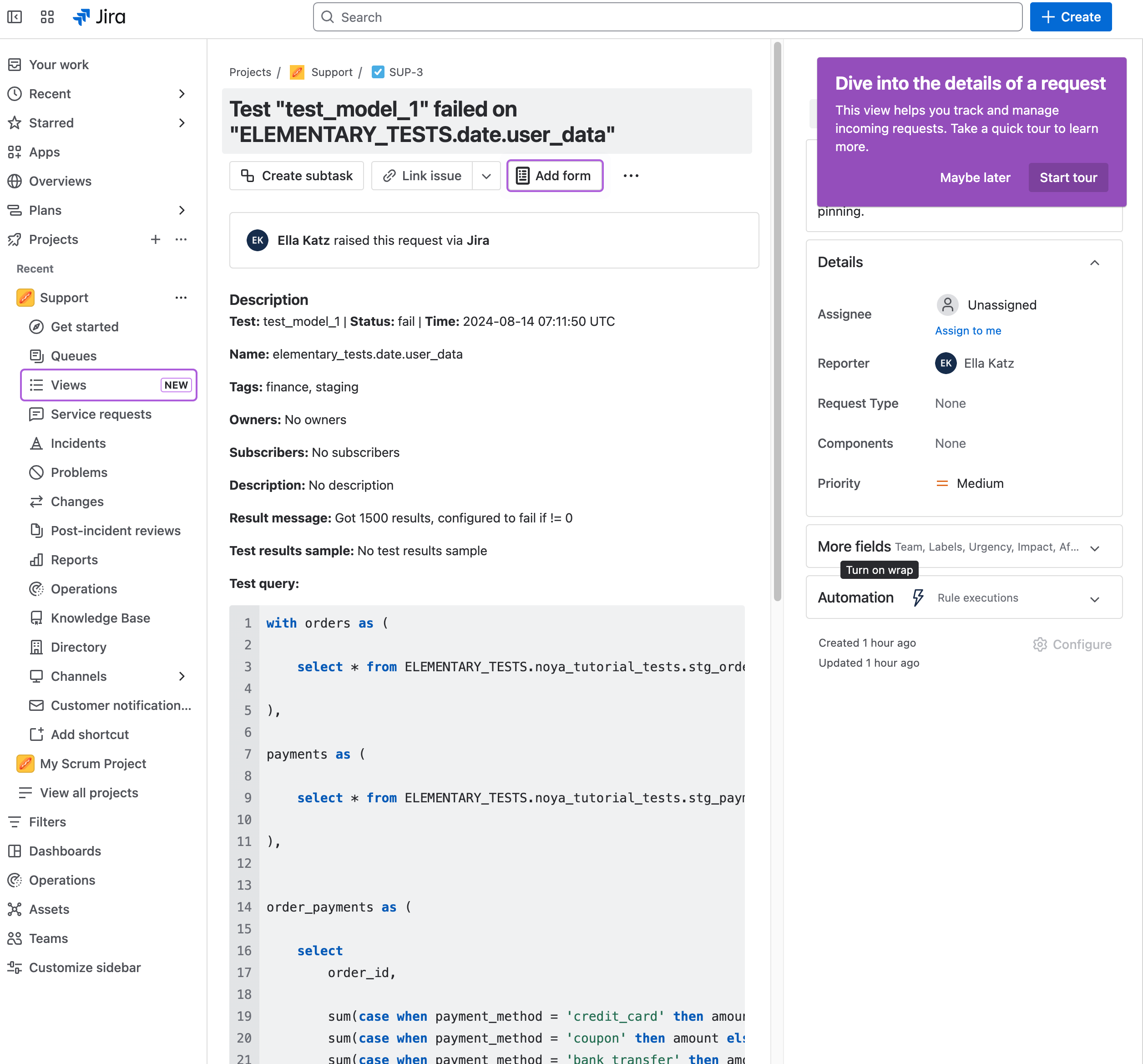
After the ticket is created, a link to the Jira issue appears on the incident page. The Jira ticket itself also includes a link back to the incident in Elementary for easy cross-referencing.
If you connected the app before December 2025, you’ll need to re-authenticate the Jira app to change the **Reporter** or **Assignee** fields. You can do this by clicking the re-authentication link in the ticket form, or by going to your environment page and re-authenticating the app for the relevant environment.
Without a Jira webhook, Elementary does not automatically update the linked Jira issue when you resolve or change an incident. Use the webhook setup below for two-way status sync.
## Creating Jira issues from incidents
When an incident is created, you can generate a Jira issue directly from the incident page by clicking **Create Jira Ticket**. This opens a pre-filled form where you can review, update, or add additional fields before submitting. Once created, the issue is automatically added to the Jira team you selected when connecting Jira.
After the ticket is created, a link to the Jira issue appears on the incident page. The Jira ticket itself also includes a link back to the incident in Elementary for easy cross-referencing.
If you connected the app before December 2025, you’ll need to re-authenticate the Jira app to change the **Reporter** or **Assignee** fields. You can do this by clicking the re-authentication link in the ticket form, or by going to your environment page and re-authenticating the app for the relevant environment.
Without a Jira webhook, Elementary does not automatically update the linked Jira issue when you resolve or change an incident. Use the webhook setup below for two-way status sync.
 ## Configure a Jira webhook for two-way sync
When a webhook is configured, Jira and Elementary stay aligned in real time: for example, closing the Jira issue can close the linked Elementary incident, and resolving the incident can update the Jira issue accordingly. Follow these steps in your Jira instance (Jira admin access required).
### Step 1: Open Jira webhook settings
1. Log in to Jira as an **Admin**.
2. Click the **Settings** (gear) icon in the top right.
3. Under Jira admin settings, select **System**.
4. In the left sidebar, scroll to the bottom and click **WebHooks**.
5. Click **Create a WebHook** (top right).
### Step 2: Fill in the webhook details
| Field | What to enter |
| ---------- | ----------------------------------------------------------------------------------------------------------------------- |
| **Name** | A clear label (for example, `Elementary Sync`). |
| **Status** | **Enabled**. |
| **URL** | Paste the unique webhook URL shown in the Elementary product (environment / Jira integration UI). |
| **Secret** | Generate the secret in Elementary, copy it, and paste it into the **Secret** field in Jira so payloads can be verified. |
### Step 3: Select events
1. In the **Events** section, open the **Issue** category.
2. Enable **updated** only.
3. Leave all other event checkboxes unchecked.
Issue updates are enough for Elementary to receive the changes needed to keep tickets and incidents in sync.
### Step 4: Scope to your project (recommended)
Limit traffic to the projects you care about using a JQL filter:
1. Find the **JQL filter** field on the webhook form.
2. Enter:
```text theme={null}
project = "YOUR_PROJECT_KEY"
```
Replace `YOUR_PROJECT_KEY` with your Jira project key (for example, `PROJ`).
### Step 5: Save and verify
1. Click **Create** at the bottom of the page.
2. After Jira delivers its first event, the webhook status in the Elementary dashboard turns **green**, which indicates a successful connection.
## Configure a Jira webhook for two-way sync
When a webhook is configured, Jira and Elementary stay aligned in real time: for example, closing the Jira issue can close the linked Elementary incident, and resolving the incident can update the Jira issue accordingly. Follow these steps in your Jira instance (Jira admin access required).
### Step 1: Open Jira webhook settings
1. Log in to Jira as an **Admin**.
2. Click the **Settings** (gear) icon in the top right.
3. Under Jira admin settings, select **System**.
4. In the left sidebar, scroll to the bottom and click **WebHooks**.
5. Click **Create a WebHook** (top right).
### Step 2: Fill in the webhook details
| Field | What to enter |
| ---------- | ----------------------------------------------------------------------------------------------------------------------- |
| **Name** | A clear label (for example, `Elementary Sync`). |
| **Status** | **Enabled**. |
| **URL** | Paste the unique webhook URL shown in the Elementary product (environment / Jira integration UI). |
| **Secret** | Generate the secret in Elementary, copy it, and paste it into the **Secret** field in Jira so payloads can be verified. |
### Step 3: Select events
1. In the **Events** section, open the **Issue** category.
2. Enable **updated** only.
3. Leave all other event checkboxes unchecked.
Issue updates are enough for Elementary to receive the changes needed to keep tickets and incidents in sync.
### Step 4: Scope to your project (recommended)
Limit traffic to the projects you care about using a JQL filter:
1. Find the **JQL filter** field on the webhook form.
2. Enter:
```text theme={null}
project = "YOUR_PROJECT_KEY"
```
Replace `YOUR_PROJECT_KEY` with your Jira project key (for example, `PROJ`).
### Step 5: Save and verify
1. Click **Create** at the bottom of the page.
2. After Jira delivers its first event, the webhook status in the Elementary dashboard turns **green**, which indicates a successful connection.